

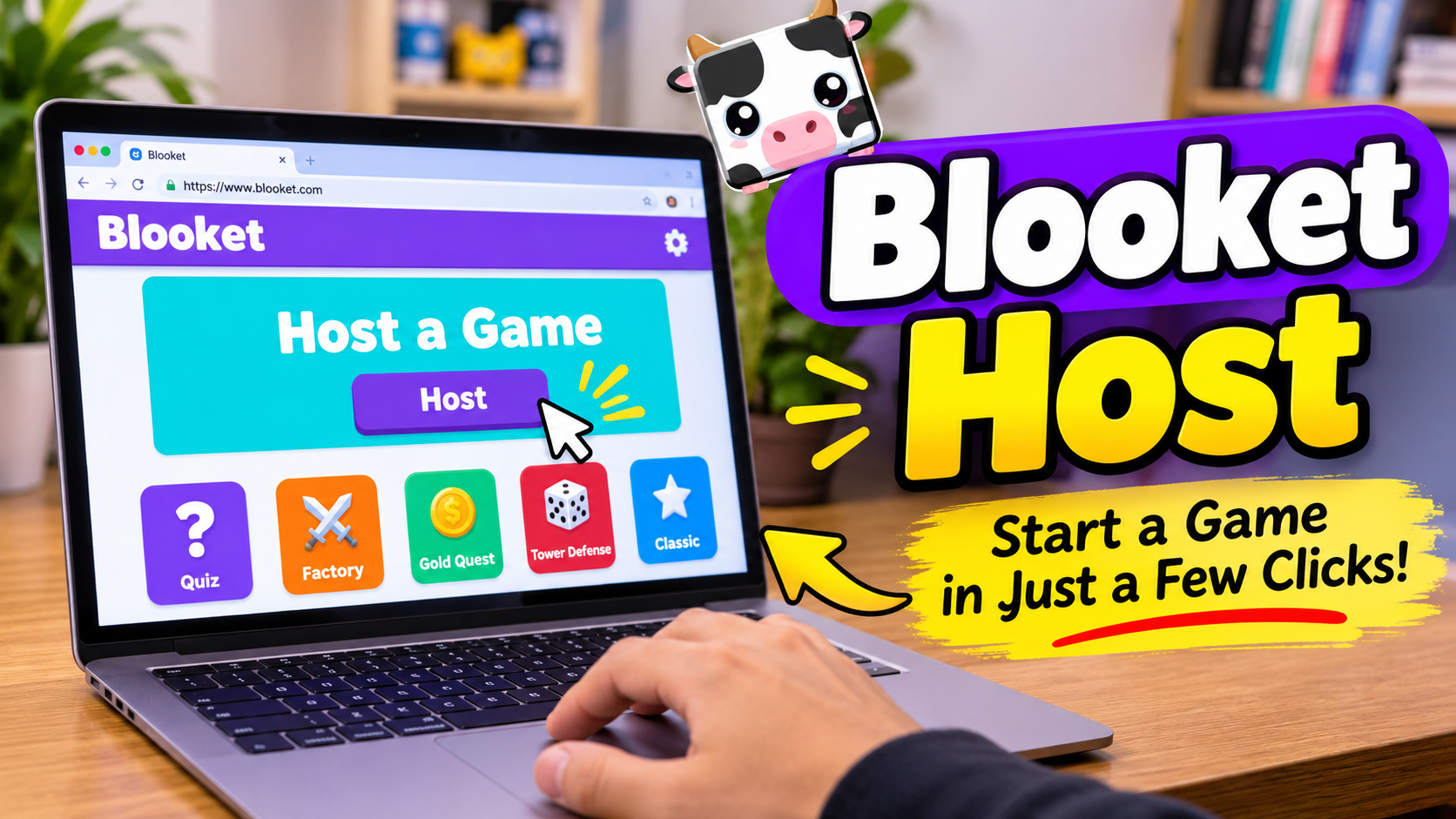
Blooket Host allows teachers, students, and other users with a Blooket account to create and manage live educational games. A host selects a question set, chooses a game mode, adjusts the available settings, and shares a unique Game ID with participants. Players can then join the session and answer questions through their own devices.
Blooket hosting makes classroom activities, revision sessions, and group learning more interactive. Whether you are hosting your first game or managing an existing session, understanding the hosting process can help you run a smooth and enjoyable experience.
What Is Blooket Host?
Blooket Host refers to the process of organizing and running a live game on the Blooket educational platform. The host controls the session setup, selects the questions, chooses the game mode, and decides when participants can begin playing.
Blooket combines educational questions with game-based activities. Instead of simply completing a traditional quiz, players answer questions while participating in different challenges, competitions, and interactive activities.
Teachers commonly use Blooket Host for:
- Classroom learning and revision.
- Vocabulary and spelling practice.
- Mathematics exercises.
- Science and history quizzes.
- Group competitions.
- Informal knowledge assessments.
Students can also host games for friends or study groups, provided they have an account with access to hosting.
How to Host a Blooket Game
Hosting a Blooket game involves selecting a question set, choosing a game mode, configuring the session, and inviting participants.
Sign In to Your Blooket Account
Start by opening Blooket in your web browser. Sign in using your existing account credentials. If you are new to the platform, create an account before attempting to host a live game.
Hosting requires an account, but participants can generally join a live session without creating their own accounts.
Choose a Question Set
After signing in, find a question set for your activity. You can choose from:
- My Sets: Access question sets you have created or saved.
- Discover: Browse publicly available question sets created by other users.
- Create: Build a custom question set with your own questions and answers.
Choose a set that matches your subject, learning objectives, and participants’ knowledge levels. Review its questions before starting the session.
Select the Host Option
Open your selected question set and choose the Host option. Blooket will display the available game modes that support live hosting.
Each mode offers a different gameplay experience, so consider the number of participants and the purpose of your activity before making a selection.
Configure Game Settings
After selecting a game mode, review the available hosting settings. Depending on the selected mode, you may be able to adjust options such as question timing, player access, question order, and display names.
Choose settings that suit your classroom or group. For example, random display names can help avoid inappropriate nicknames, while late-joining options can accommodate participants who arrive after the game begins.
Generate a Game ID
Once the settings are ready, select the final hosting option, commonly displayed as Host Now. Blooket creates a live game session and provides joining information.
Depending on the interface, participants can use a Game ID, QR code, or direct join link to access the session.
Start the Game
Wait for participants to enter the lobby. Check that the expected players have joined, then select Start to begin.
As the host, you can manage the session using the controls available for the selected game mode.
Understanding Blooket Game Modes
Game modes are an important part of the Blooket hosting experience. They determine how participants interact with questions and compete during a session.
Popular Blooket game modes include:
Classic
Classic is a straightforward quiz-based mode in which players answer questions and compete for points. It is suitable for general knowledge practice and classroom revision.
Gold Quest
Gold Quest adds an element of strategy and unpredictability. Players answer questions to earn opportunities to collect gold and compete with others.
Tower Defense
Tower Defense combines question answering with strategic gameplay. Players use their progress to build and improve defenses against incoming opponents.
Racing
Racing is a competitive mode in which players answer questions to advance through a race. It is useful for quick revision activities and friendly competitions.
Battle Royale
Battle Royale introduces a competitive format in which participants face off against other players. It can make classroom quizzes more exciting and challenging.
The availability of game modes may depend on the current Blooket features and hosting options.
How Players Join a Blooket Host Game
Joining a hosted Blooket session is relatively simple. Participants need the joining information provided by the host.
The general joining process includes:
- Open the Blooket game-joining page.
- Enter the Game ID provided by the host.
- Choose an appropriate display name.
- Follow the on-screen instructions to enter the lobby.
- Wait for the host to start the game.
Participants can also join through a shared QR code or direct invitation link when available.
A Blooket account is not generally required to participate in a live game as a guest. However, signing in provides access to additional account features.
Important Features of Blooket Host
Blooket Host offers several useful features that help organize educational activities and manage participants.
Live Game Management
The host can organize a live session, monitor the lobby, and use the available controls to manage the game. This helps teachers coordinate activities without requiring every participant to manage the session independently.
Custom Question Sets
Hosts can use existing public question sets or create their own. Custom questions allow educators to prepare activities based on specific lessons, subjects, and learning objectives.
Multiple Game Modes
Different game modes provide different challenges and experiences. This variety helps teachers introduce new activities instead of repeating the same quiz format.
Player Participation
Participants can join using the session’s Game ID or other available joining methods. This makes it possible to organize activities with students using separate computers, tablets, or smartphones.
Post-Game Reports
After a game ends, hosts can access available game results and performance information. These reports can help teachers understand how participants performed and identify topics that may need additional attention.
The level of reporting and available insights can vary depending on the account subscription.
Blooket Host for Teachers
Teachers can use Blooket Host to make lessons more interactive and encourage students to participate in classroom activities.
Instead of relying entirely on traditional question-and-answer exercises, educators can introduce quizzes through different game modes.
Some practical classroom uses include:
- Reviewing important topics before an examination.
- Practicing mathematical calculations.
- Testing vocabulary and spelling knowledge.
- Revising science concepts.
- Checking students’ understanding after a lesson.
- Organizing friendly classroom competitions.
Teachers should review question sets before hosting to ensure that the information is correct, appropriate, and relevant to the lesson.
Can Students Host Blooket Games?
Students can also use Blooket to organize learning activities with friends and classmates. A student with an eligible Blooket account can select a question set and use the hosting process to create a live session.
Student-hosted games can be useful for:
- Group study sessions.
- Practice quizzes.
- Subject revision.
- Friendly educational competitions.
- Collaborative learning activities.
The host should share the joining information only with the intended participants, particularly when organizing a private study session.
Blooket Host on Mobile and Desktop
Blooket can be accessed through supported web browsers on computers, tablets, and smartphones.
Desktop: A computer provides a larger display, making it convenient for teachers who want to monitor the lobby, manage settings, and display questions to a classroom.
Mobile: Users can access Blooket through a mobile browser. This provides flexibility when a computer is unavailable.
Tablet: Tablets offer a larger touchscreen than most smartphones while maintaining the convenience of a portable device.
The available controls and layout may look slightly different depending on the device and browser.
Blooket Host Free vs. Paid Features
Blooket offers a free account option and paid subscription features. Users can host supported live games without necessarily purchasing a subscription.
The free option is useful for basic educational activities, while paid plans provide additional capabilities depending on the current subscription.
Some differences may include:
- Higher player limits.
- Additional game-related features.
- Expanded reporting options.
- More advanced educational tools.
- Additional customization capabilities.
Specific limits and subscription benefits can change. Users should check their account’s current plan information rather than relying on outdated player limits or feature descriptions.
Common Blooket Host Problems and Solutions
Sometimes users experience difficulties while creating or managing a live game. Understanding common problems can help resolve them quickly.
Blooket Host Is Not Working
If the hosting page does not load, refresh the browser and sign in again. Check your internet connection and make sure your browser is updated.
You can also try opening Blooket in another supported browser.
Game ID Is Not Working
A Game ID may fail if it has expired, is incorrect, or is no longer associated with an active session.
Ask the host to check the current joining information and share the correct code again.
Players Cannot Join the Game
Check that participants are entering the correct Game ID and using the appropriate joining page.
Also, review the late-joining settings if the game has already started. Some sessions may restrict additional participants after the beginning.
Blooket Host Is Loading Slowly
A slow internet connection, browser problems, or temporary service issues can affect loading times.
Try closing unnecessary browser tabs, refreshing the page, and checking your internet connection.
Game Mode Is Not Available
Not every game mode is necessarily available for every hosting situation. Check the options displayed when selecting a question set and review any account or mode restrictions.
Tips for a Better Blooket Hosting Experience
A successful Blooket session requires more than simply generating a Game ID. Good preparation can make the activity more organized and useful.
- Choose relevant questions: Select content that matches the lesson or study topic.
- Check the answers: Review the question set before inviting participants.
- Select a suitable game mode: Consider the age group, subject, and activity objectives.
- Test your connection: Make sure your internet connection is stable before starting.
- Explain the rules: Tell participants how the selected game mode works.
- Manage display names: Use random names when appropriate for your classroom.
- Review the results: Use available performance information to identify areas that need improvement.
These simple practices can help teachers and students enjoy a more organized learning experience.
Frequently Asked Questions About Blooket Host
What is Blooket Host used for?
Blooket Host is used to create and manage live educational games. Hosts select question sets, choose game modes, configure settings, and invite participants to join.
How do I host a Blooket game?
Sign in to your Blooket account, select a question set, click Host, choose a game mode, adjust the available settings, and select Host Now. Share the generated Game ID or joining link with participants.
Can I host a Blooket game for free?
Yes. Blooket offers free hosting for supported game modes. A paid subscription is not necessarily required to organize a basic live game.
Do players need an account to join Blooket Host?
No. Players can generally join a live game as guests using the Game ID or another available joining method. An account is optional for basic participation.
Can students become Blooket hosts?
Yes. Students with eligible Blooket accounts can host games for study groups, friends, and classmates.
Can I host Blooket games on my phone?
Yes. You can access Blooket through a supported mobile browser and follow the same general hosting process used on desktop devices.
Conclusion
Blooket Host provides a convenient way to organize interactive educational games for classrooms, study groups, and friendly competitions. Its question sets, different game modes, player-joining options, and performance reports make it a useful platform for combining learning with entertainment.
Whether you are a teacher preparing a classroom activity or a student organizing a practice quiz, understanding how Blooket hosting works can help you create a more engaging and organized learning experience.
Also read: Blooket Hacks
