

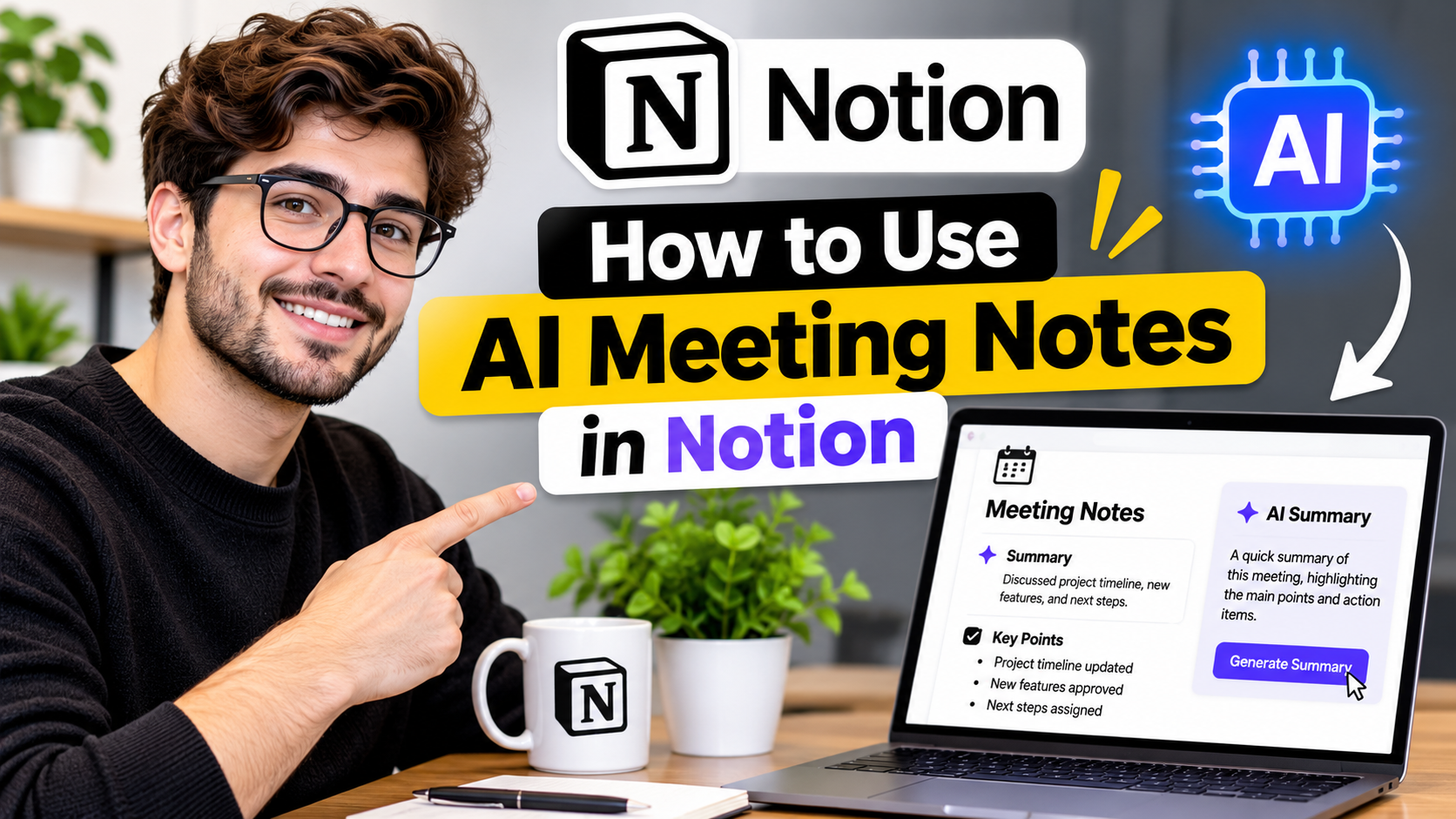
AI meeting notes in Notion help you automatically record conversations, transcribe spoken words, summarize important discussions, and identify action items without manually typing everything. Notion AI Meeting Notes makes it easier to manage meetings, organize decisions, and keep your team informed.
Whether you attend online meetings, client calls, team discussions, or project planning sessions, Notion can turn conversations into organized, searchable notes. You can also connect your meeting notes to Notion Calendar and store them in a dedicated database.
What Are AI Meeting Notes in Notion?
AI Meeting Notes is a built-in Notion feature that uses artificial intelligence to capture and organize meeting information. It transcribes conversations and generates summaries containing important points, decisions, and follow-up tasks.
Instead of concentrating on writing everything down, you can focus on the conversation while Notion handles the documentation.
The feature can help with several meeting-related activities:
- Automatic transcription: Converts spoken conversations into written text.
- AI-generated summaries: Highlights important information discussed during meetings.
- Action items: Identifies tasks and follow-up responsibilities.
- Speaker identification: Helps distinguish between different speakers in supported situations.
- Meeting organization: Saves notes in Notion pages and databases.
- Custom summaries: Allows you to choose how meeting information should be organized.
These capabilities make Notion useful for individuals, freelancers, project managers, and teams that regularly participate in online meetings.
How to Use AI Meeting Notes in Notion
Getting started with AI meeting notes is straightforward. You need a compatible Notion workspace and access to the AI Meeting Notes feature.
Check Feature Availability
Before starting, check whether your Notion subscription supports AI Meeting Notes. The feature is available on Notion Business and Enterprise plans, as well as eligible mobile subscriptions that include Notion AI.
For desktop users, Notion also recommends using a supported, updated desktop application.
Create a Meeting Notes Block
Open Notion and navigate to the page where you want to save your meeting information.
Type /meet in the page editor and select the AI Meeting Notes option.
Notion will insert a meeting notes block into your page. You can also create a separate meeting notes page through the Meetings section in the sidebar.
This gives you two ways to organize your information:
- Add meeting notes directly to an existing project or workspace page.
- Create a separate page for an individual meeting.
Prepare Your Meeting Notes
Before starting transcription, add useful information to the Notes section.
For example, you can include:
- Meeting agenda
- Project updates
- Questions to discuss
- Important background information
- Previous meeting decisions
Notion AI considers these notes when generating the final summary. Providing context can help make the results more relevant to your discussion.
Start Transcribing the Meeting
When your meeting begins, select Start transcribing in the AI Meeting Notes block.
Notion will begin capturing and transcribing the conversation. Depending on your device and meeting setup, you may need to grant microphone, system audio, and screen recording permissions.
If you are using a desktop application for a virtual meeting, system audio access helps Notion capture other participants’ voices.
Remember to obtain permission from everyone involved before recording or transcribing the conversation.
Stop Transcription and Generate a Summary
After the meeting finishes, select Stop.
Notion AI will process the recorded conversation and generate a summary. The result can include:
- Main discussion points
- Important decisions
- Meeting highlights
- Follow-up tasks
- Relevant details from your preparation notes
Notion requires at least 300 transcribed characters, approximately one minute of spoken content, to generate a summary.
You can review the transcript and summary directly inside your meeting notes page.
How to Organize AI Meeting Notes in Notion
Creating meeting notes is only the beginning. Organizing them properly makes it easier to find important information later.
Create a Dedicated Meeting Database
A meeting database provides one central location for storing meeting information.
You can create a database with properties such as:
- Meeting title
- Meeting date
- Attendees
- Project name
- Meeting category
- Follow-up status
Notion meeting notes include built-in properties for the title, date, and attendees. When connected to a calendar event, some of these details can be populated automatically.
Set a Default Meeting Notes Database
If you regularly create meeting notes, choosing a default database can save time.
Open Notion settings and navigate to Meeting notes. Find the Default meetings database option and select your preferred database.
New meeting notes will then be saved to that location by default.
Organize Recurring Meetings
For recurring meetings, such as weekly team discussions or project updates, keep related notes together.
You can organize meeting records by project, team, or meeting type. This makes it easier to compare previous discussions and track decisions over time.
You can also use database templates to prepare recurring meeting pages with predefined sections.
How to Connect Notion AI Meeting Notes With Notion Calendar
Notion Calendar can make meeting preparation and documentation more convenient.
Connecting your calendar allows you to create, open, and manage meeting notes from calendar events.
To connect the two services:
- Open the Notion sidebar.
- Select Meetings.
- Choose Connect your calendar.
- Select your calendar provider.
- Follow the instructions to complete the connection.
You can also connect your calendar through the settings menu in an AI Meeting Notes block.
After connecting, open a calendar event to access available meeting note options.
Depending on the event and your settings, you may see options such as:
- AI meeting note: Create a new meeting note or link an existing Notion page.
- Add meeting note: Create a note for an upcoming event.
- Join and transcribe: Open or create meeting notes and start transcription.
- Open meeting note: Access an existing meeting record.
- View summary: Review the generated meeting summary after the discussion.
This integration is particularly useful for people who manage multiple meetings throughout the week.
How to Customize AI Meeting Notes in Notion
Notion allows you to customize the way AI organizes meeting summaries.
Different meetings require different types of documentation. A sales meeting may need customer requirements and next steps, while a team meeting may require project updates and assigned responsibilities.
Choose Summary Instructions
Open your AI Meeting Notes block and locate the Instructions section.
You can select the available summary format instead of using the default Auto option.
Notion also allows you to create custom summary instructions.
Create Custom AI Instructions
To create your own format:
- Open the Instructions dropdown.
- Select Add custom instructions.
- Edit the instruction template.
- Define the sections you want in your summaries.
- Save your instructions and select them for future meetings.
For example, you can ask Notion to organize meeting summaries using these sections:
- Meeting overview
- Main discussion points
- Decisions made
- Tasks and responsibilities
- Deadlines
- Questions requiring further discussion
Custom instructions help maintain consistency across different meetings.
You can also set your preferred instructions as the default for future recordings.
How to Use AI Skills With Meeting Notes
Notion provides reusable AI skills that can perform additional tasks using your meeting information.
These skills can help you process notes without repeatedly writing detailed instructions.
Some built-in examples include:
Catch Me Up
This skill helps you understand important information discussed during an ongoing meeting.
Suggest Questions
It can help identify useful questions to ask based on the conversation.
Recap Decisions
This skill focuses on important decisions made during the discussion.
Create Follow-Up Tasks
After a meeting, this skill can help turn discussion points into actionable tasks.
Make Summary More Detailed
You can use this skill to expand a short summary and include additional context.
Notion also supports custom skills for tasks such as preparing follow-up emails, creating recaps, and organizing meeting information.
Can You Upload Existing Meeting Recordings to Notion?
Yes. You do not always need to record a meeting directly inside Notion.
You can upload an existing audio recording to an AI Meeting Notes block and allow Notion to transcribe and summarize it.
To upload a recording:
- Open a page containing an AI Meeting Notes block.
- Select the settings icon at the top of the block.
- Choose Upload audio.
- Select an audio file from your device.
Notion supports AAC, M4A, MP3, and WAV audio formats for this process.
After uploading, Notion processes the recording and generates a transcript and summary.
This option is useful when you have recorded a meeting using another application and want to organize its information inside Notion.
Best Practices for Using AI Meeting Notes in Notion
Getting useful results depends on more than simply starting transcription. A few practical habits can improve the quality and organization of your meeting records.
Use a Clear Meeting Agenda
Prepare an agenda before starting the meeting. Include the main topics, questions, and expected outcomes.
This gives Notion additional context when generating the summary.
Use a Good Microphone
Clear audio makes transcription easier. Try to reduce background noise and use a reliable microphone.
For virtual meetings, the desktop application can capture system audio directly when the required permissions are enabled.
Review AI-Generated Summaries
AI-generated notes can occasionally misunderstand names, technical terms, or complicated discussions.
Review important decisions, figures, deadlines, and assigned responsibilities before sharing the summary with others.
Create Consistent Meeting Templates
Use a standard format for recurring meetings. This makes information easier to understand and compare.
Assign and Track Follow-Up Tasks
Do not leave important tasks buried inside meeting summaries. Convert them into actionable items and track their progress in your project management system.
Manage Access and Privacy
Meeting notes have their own sharing settings. Check who can access the transcript, summary, and related information before sharing a page.
Always consider participant consent and applicable recording and privacy requirements.
Common Problems With Notion AI Meeting Notes
Although the feature is designed to simplify meeting documentation, users may occasionally experience technical problems.
AI Meeting Notes Is Missing
If /meet does not appear in your Notion editor, the feature may be disabled for your workspace.
A workspace owner can check Settings and then Meeting notes to enable AI Meeting Notes.
Transcription Is Not Working
Check whether Notion has permission to access your microphone and system audio.
Also make sure you are using an updated version of the desktop application.
Other Participants Cannot Be Heard
This issue can occur when Notion cannot access system audio.
Check your audio permissions and meeting setup. Using the desktop application can help capture audio from virtual meetings.
AI Summary Is Not Generated
Notion needs at least 300 transcribed characters to generate a meeting summary.
If the recording is too short or the audio quality is poor, there may not be enough usable transcription.
Notion AI Meeting Notes Is Not Available on Your Plan
Check your subscription and workspace settings. Business and Enterprise plans support the feature, while availability on mobile depends on an eligible subscription that includes Notion AI.
Frequently Asked Questions
What is AI Meeting Notes in Notion?
AI Meeting Notes is a Notion feature that transcribes meeting conversations and uses artificial intelligence to generate summaries, identify important discussion points, and organize action items.
How do I activate AI Meeting Notes in Notion?
Open a Notion page in the desktop application, type /meet, and select AI Meeting Notes. Start transcription when your meeting begins and stop it when the discussion finishes.
Is Notion AI Meeting Notes free?
AI Meeting Notes is available on Notion Business and Enterprise plans and eligible mobile subscriptions that include Notion AI. Availability depends on your subscription.
Can Notion AI automatically summarize meetings?
Yes. After you stop transcription, Notion AI processes the conversation and generates a summary containing important points and action items.
Can I use AI Meeting Notes without a live meeting?
Yes. You can upload an existing audio recording to an AI Meeting Notes block. Notion supports AAC, M4A, MP3, and WAV formats.
Does Notion AI Meeting Notes identify speakers?
Notion can label different speakers in supported situations. Speaker labeling is available in English and works best for virtual one-on-one meetings on the desktop application.
Conclusion
Learning how to use AI meeting notes in Notion can make meeting documentation easier and more organized. The feature helps capture conversations, generate summaries, identify action items, and store important information in one workspace.
By combining AI Meeting Notes with Notion Calendar, custom summary instructions, databases, and reusable AI skills, you can create a more consistent meeting management workflow. However, reviewing AI-generated information and respecting participant consent remain important parts of using the feature effectivel.
Also read: Celebrity Morning Routine

1 Comment
Pingback: Arts KnowYourMeme 2013: Exploring Internet Art and Meme Culture